Connect a source
Your coach sees each new workout after you connect. If you connect Garmin, turn on Historical Data on the Garmin screen so that your coach also sees your last month.
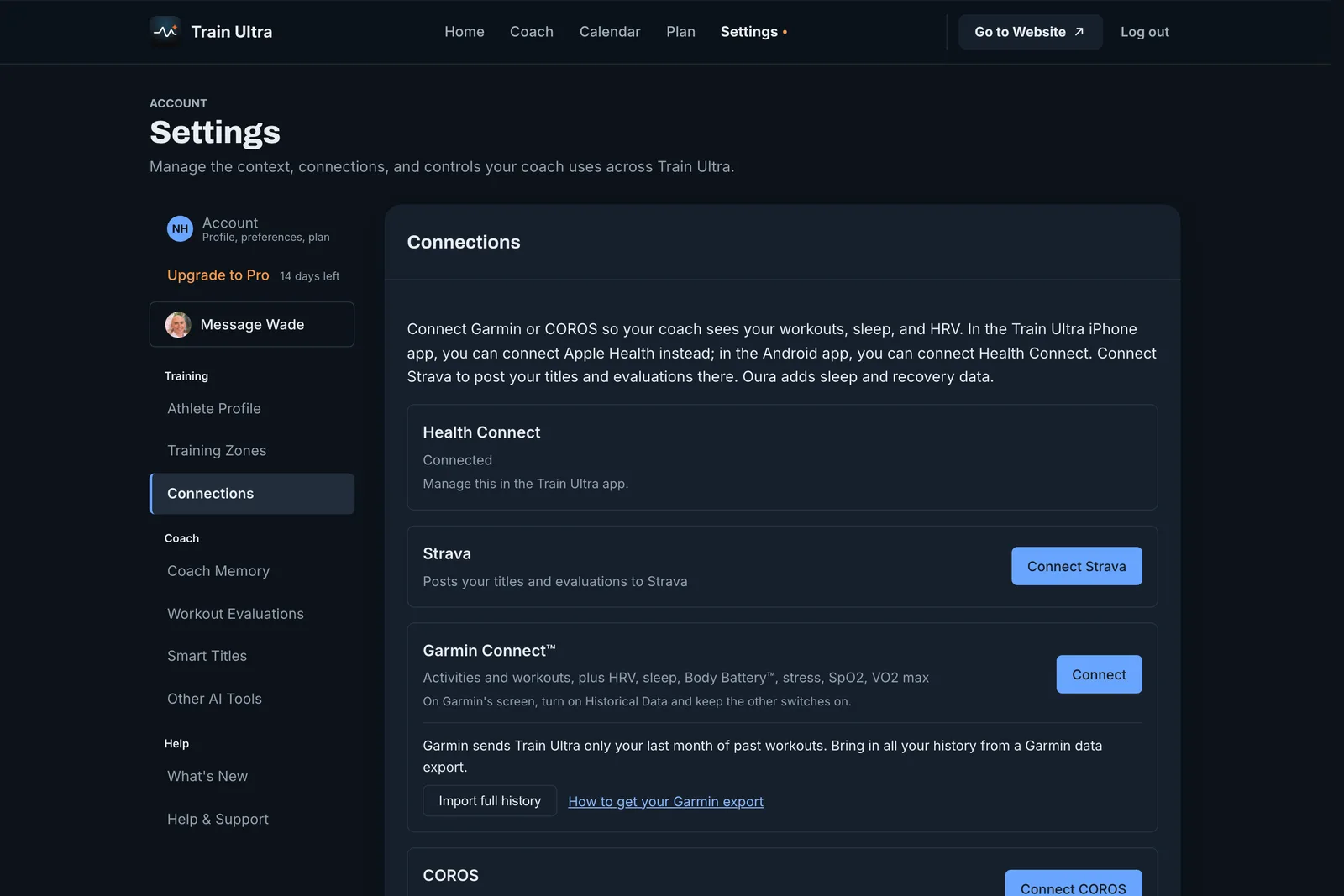
- Open Settings, then Connections.
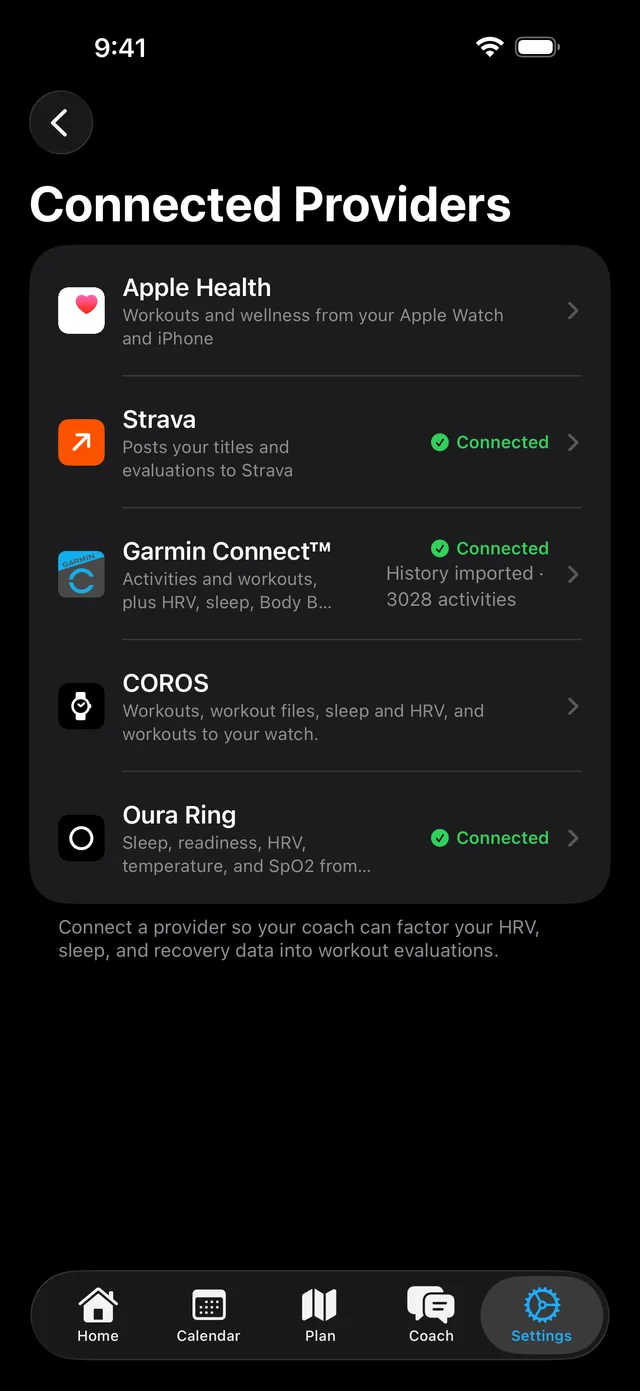
- Select the source that you train with.
- Sign in to that service and allow access.
What each source does
- Garmin: your workouts, sleep, and recovery. With Pro or a trial, Train Ultra can also send planned workouts and routes to your watch.
- COROS: your workouts, sleep, and HRV. With Pro or a trial, Train Ultra can also send planned workouts to your watch.
- Apple Health, in the iPhone app: your workouts and wellness data.
- Health Connect, in the Android app: your workouts and wellness data.
- Oura: your sleep, readiness, HRV, and resting heart rate. Oura does not bring in workouts.
- Strava: Train Ultra posts titles and evaluations to your Strava activities. Strava does not bring in workouts, so connect one of the sources above first.
How far back your coach can see
To bring in every past Garmin workout, import a Garmin data export. The Garmin guides below show how.
- Garmin: about your last month, and only when Historical Data is on.
- COROS: up to a year.
- Apple Health and Health Connect: your last 90 days of workouts.
- Oura: your last 28 days of wellness data.
Connect more than one
You can connect a watch and Oura together. Your coach uses the wellness data from all of them.
Disconnect a source
Open Settings, then Connections, and disconnect it. Train Ultra stops reading new data from that source.